

Check the prerequisites on the remote PC
The most reliable method is to run msg.exe directly on the target PC through PowerShell remoting. Check three points before the first send.
- WinRM is running. On a domain, it is often enabled by Group Policy. Otherwise, run
Enable-PSRemotingas an administrator on the PC. - Your account is an administrator on the PC. By default, only local administrators can open a remote PowerShell session.
- msg.exe is available. The command ships with the Pro and Enterprise editions of Windows, not with Windows Home.
Test-WSMan -ComputerName PC-COMPTA-07If the command returns a response from the WS-Management service, the connection works.
See who is signed in
msg.exe shows nothing if nobody has signed in. Start by querying the PC.
Invoke-Command -ComputerName PC-COMPTA-07 -ScriptBlock { query user }The user’s session should be listed as Active. A disconnected session is still open, but nobody is in front of the screen.
Show the message
$message = "Your PC will restart at 12:30 for an update. Please save your files. Help desk: 4455."
Invoke-Command -ComputerName PC-COMPTA-07 -ScriptBlock {
    msg * /time:600 $using:message
}
The asterisk sends the window to every session open on that PC. The /time:600 option keeps it on screen for ten minutes instead of the default 60 seconds. The $using: prefix passes the local variable to the remote PC.
Try it first on a test PC. Check how accented characters display and how long the text can be.
Common pitfall
msg.exe does not exist on Windows Home. On those PCs, the script fails and the user sees nothing.
Warn every PC in a department
For a whole department, get the computers in its organizational unit from Active Directory. You need the ActiveDirectory module from RSAT. The script records the result for each PC in a CSV file.
$message = "The file server will be down from 12:30 to 13:00. Please save your documents."
$computers = Get-ADComputer -Filter * -SearchBase "OU=Accounting,DC=contoso,DC=local" |
    Select-Object -ExpandProperty Name

$results = foreach ($computer in $computers) {
    try {
        Invoke-Command -ComputerName $computer -ErrorAction Stop -ScriptBlock { msg * /time:600 $using:message }
        [pscustomobject]@{ Computer = $computer; Result = "Sent" }
    } catch {
        [pscustomobject]@{ Computer = $computer; Result = $_.Exception.Message }
    }
}
$results | Export-Csv .\message-results.csv -NoTypeInformation -Encoding UTF8
Invoke-Command can also target several PCs at once, with 32 simultaneous connections by default. The loop is slower, but it shows which PCs did not get the message: switched off, off the network or without WinRM.
A “Sent” line means the command ran on the PC. It does not prove that anyone read the window.
60 s
default msg.exe display time
32
simultaneous connections by default with Invoke-Command
0
read receipts recorded by msg.exe
Limits to keep in mind
- No read receipt. The /w option waits for the user to close the window, one PC at a time. It does not give you a list of the people who read the message.
- Plain text only. No title, no urgency level, no attachment. A security alert looks just like a meeting reminder.
- Targeting by computer. The script reaches the PCs in an OU, not the people in a group. A colleague signed in on another PC gets nothing.
- Prerequisites on every PC. WinRM, administrator rights and firewall rules must be in place. PCs that are off or off the network fail.
- A script to run under pressure. During an incident, writing and running the script takes time. It is better to prepare the messages in advance.
When to switch to a dedicated tool
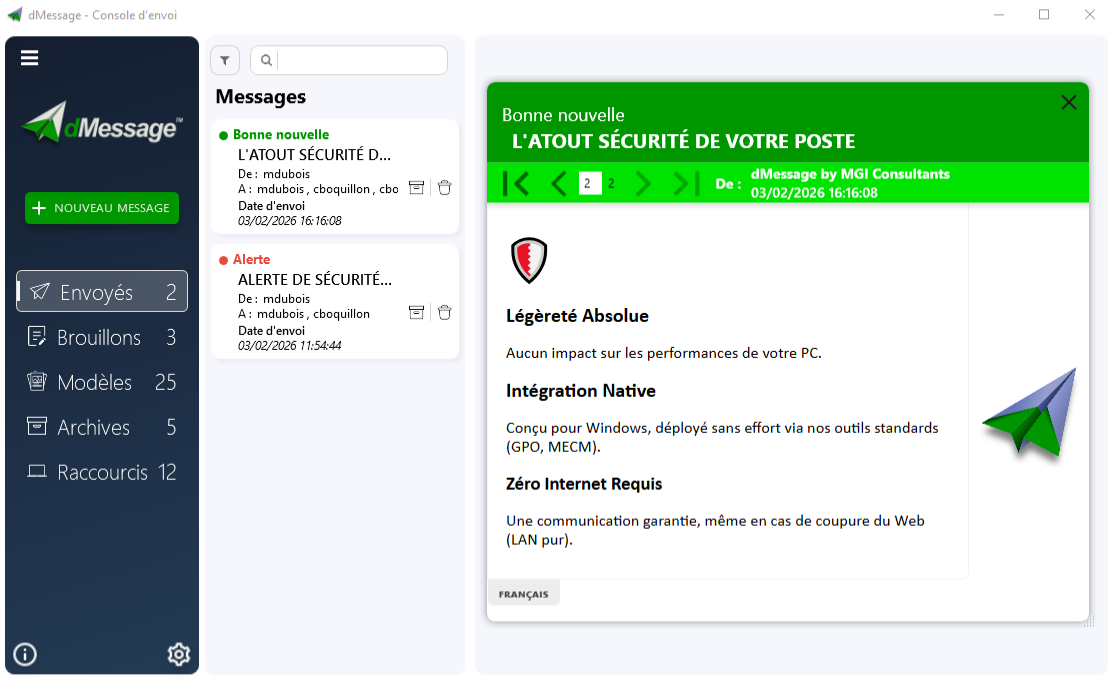
To warn a whole department regularly, or to know who read an instruction, dMessage targets Active Directory users and groups directly. Templates are prepared in advance and read receipts are recorded. You know who has read it, and whom to chase. Here is the same message, sent to the Accounting group.
The PowerShell script is still useful for a one-off need. With dMessage, sending does not depend on WinRM: the agent installed on each PC displays the messages prepared in the console.
Safran, Amundi and France’s Council of State use dMessage
Compare it with your script, on three PCs
Install the trial version, send this message to a small Active Directory group and see who has read it. It is free for 30 days.
Understand the syntax and permissions of the MSG command · Try dMessage for 30 days
Sources: msg command documentation · Invoke-Command documentation