

How can a web page compromise an iPhone?
A page opened in the browser can load malicious content. On a vulnerable device, flaws in the web engine and other components can be chained to bypass normal protections. An exploit chain uses several weaknesses in succession.
Research by Google and iVerify describes campaigns using Coruna or DarkSword to access iPhone data, including passwords. Visiting a malicious page or loading a malicious advertisement can be enough, depending on the device version and configuration.
Key point
“iOS 18 or earlier” is misleading shorthand: these versions are not all equivalent. Security fixes also exist for devices that remain on an older branch. Check the version actually installed and the updates available for that model.
Remediation: install the latest compatible update
- On the iPhone or iPad, open Settings → General → Software Update.
- Install the latest compatible version offered by Apple after making the recommended backup.
- On a managed work device, follow the IT procedure; report a blocked update instead of bypassing management settings.
- After installation, check that the expected version is present. Enable automatic updates according to your organisation’s policy.
If you suspect a compromise, contact support or the security team through the normal channel. Updating fixes vulnerabilities; it does not by itself establish that no data was stolen.
How dMessage helps: getting the instructions to your teams
Support can display a short reminder on the Windows workstations of the relevant teams: which device to update, where to find the menu and whom to contact for help. This is useful when people also use a work iPhone but do not check their email straight away.
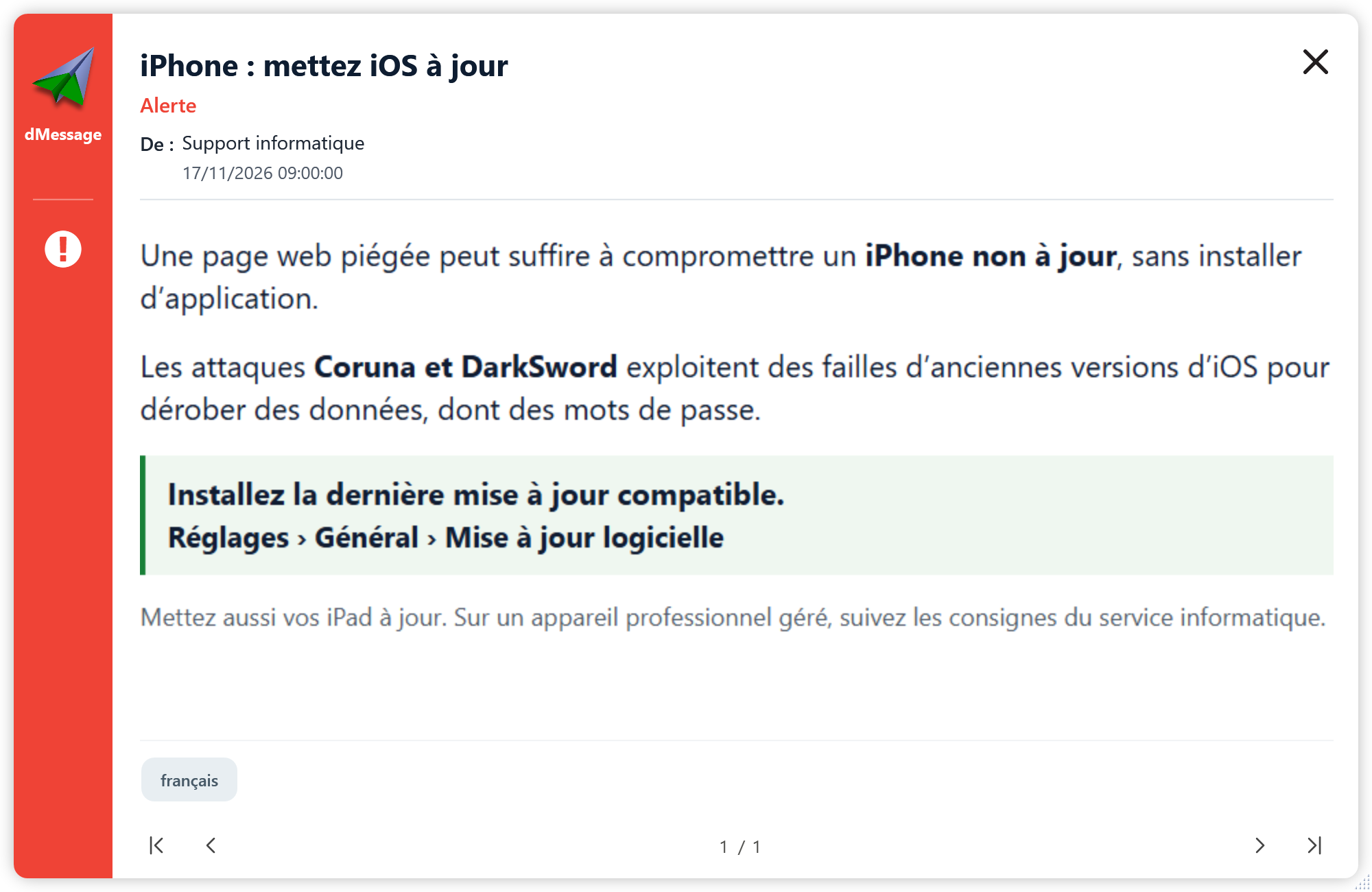
dMessage delivers the reminder on Windows; the update takes place on the Apple device. Fleet compliance checks remain the job of your management tools. A read acknowledgement confirms the message, not installation of the patch.
Sources and documentation
- Apple: protect your iPhone from web-based attacks
- Apple: update your iPhone or iPad
- Google Threat Intelligence: DarkSword analysis
- iVerify and Report URI: investigation into malicious pages and advertisements
Cyber awareness, directly on screen
Get the update instructions across
Display a clear reminder on your teams’ Windows workstations. Try dMessage free for 30 days on a few computers.